

If you are experiencing communication issues with FlexNet, your firewall or antivirus software may be preventing required files from communicating properly.
To help resolve these issues, add the following FlexNet files to the list of allowed applications in your firewall and antivirus settings.
Both files are located in the 64-bit folder of the FlexNet files.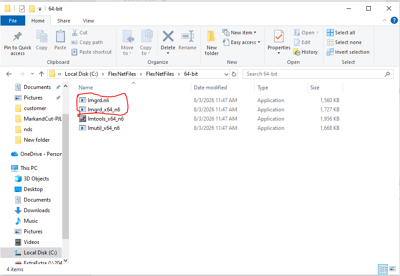
- lmgrd.nli
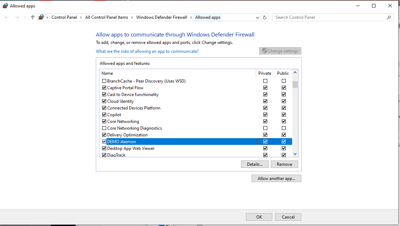
- lmgrd_x64_n6
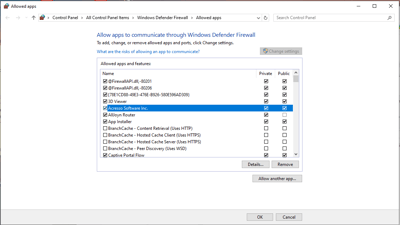
Required Permissions
When adding these files to your firewall or antivirus settings:
- Allow both files through the firewall.
- Grant access on both Private and Public networks.
- Allow both inbound and outbound communication.
- Complete these steps even if your firewall is currently disabled.
If you are creating custom firewall or antivirus rules, make sure separate permissions do not prevent either file from communicating inbound or outbound.
Once these permissions are in place, retry the connection to determine whether the communication issue has been resolved.
If you continue to experience issues, please contact Neuralog Support for assistance.