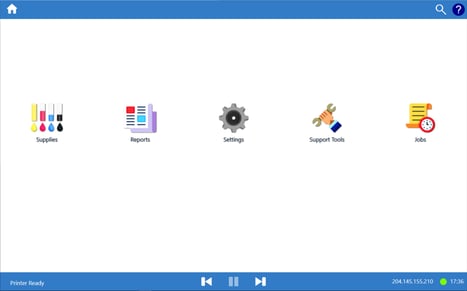

Summary of the Problem
- Printer turns on and boots up, but Initializing… or Printer Not Ready state persists.
- Selecting ? to bring up the about panel indicates the BnB is unavailable
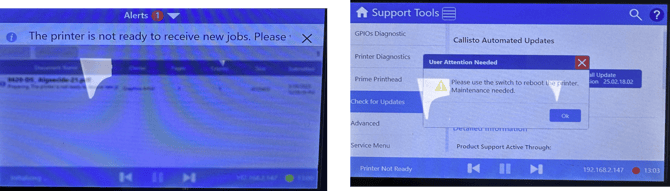
- If BnB is powered on, it has likely lost its network connection to the primary board (OEM1) in one of two ways:
- IPV4 Internal Network Address has changed (gets set to DHCP)
- IPV6 Internal Network Address has been activated
- Recovery Steps
- Obtain the BnB Hostname via the printer Network Explorer
- Access the BnB web server through its Hostname
- Correct the Network Address using the printer web page
If this was the issue, and the IPV 4 address is successfully restored to 169.254.0.2, the printer will change to Printer Ready.
Is the BnB Up and Running?
First, establish whether the BnB has power and is running.
- Verify the BnB has power and that the Main PCA green light is blinking.
- Verify that the BnB carriage moves when the printer is powered on.

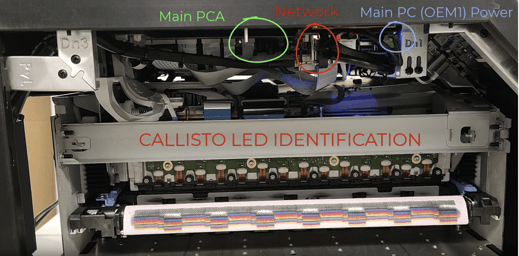
Watch the support video in the Callisto Support Library: Opening and Closing the Printer and LED Identification – Callisto Support Library
If the Main PCA light is blinking and the BnB head moves upon starting up the printer, the BnB has power. The BnB must be up, but not communicating with the printer because there is a state of Printer Not Ready.
Recover the BnB
- Touch the L on the NeuraLabel logo on the OpPanel and then select the keyboard and explorer, and type Network into the Explorer.
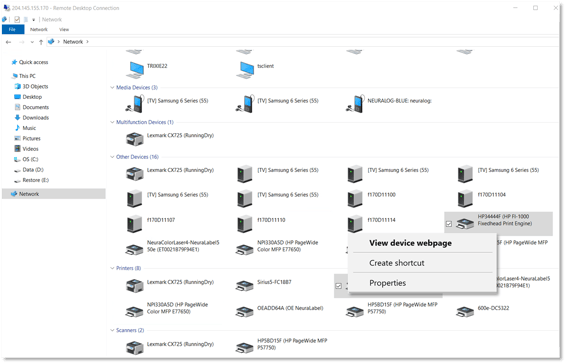
Does HP FI-1000 Fixed Printhead appear?
If HP FI-1000 Fixed Printhead appears, the BnB is up and running and can be accessed by its Hostname. The hostname is shown.
Right click on HP FI-1000 Fixed Printhead and select View device webpage.
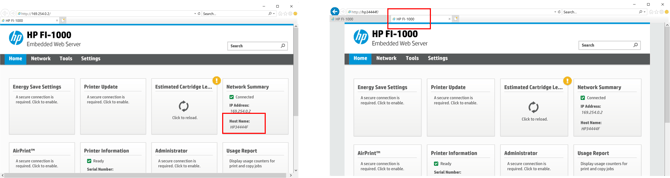
The picture below shows a correctly configured BnB. Summary of the steps:
- Remote into the printer, bring up windows explorer
- Bring up or find a window using the IP or hostname
- Enter IP Address 169.254.0.2 to see BnB Web Server
- Enter Hostname HP3444F (our example) to see BnB Web Server. Your BnB Hostname will be different, but similar.
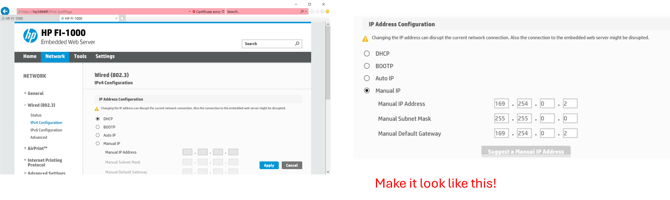
Reset the BnB Address to 169.254.0.2 IPV4 to recover the lost BnB
- Access BnB with Hostname
- Click on the Network Summary box
- Select Wired and IPv4 Configuration – Click through the security messages that appear
- Enter the default info as shown and click Apply
- Manual IP
- Manual IP Address 169.254.0.2
- Manual Subnet Mask 255.255.0.0
- Manual Default Gateway 169.254.0.2
- Refresh your IP window when done to make sure you were successful
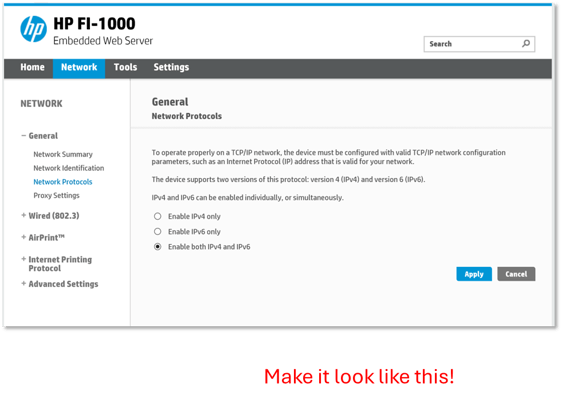
Occasionally, the BnB will change from IPv4 to IPv6. This is also a cause of the loss of connection. If needed, reset the BnB to allow IPV4.
- If the BnB is still not connected, check the Network Protocols
- Make sure Enable both IPv4 and IPv6 radio button is active.
Once restored, the BnB web server can be brought up through the default network address of 169.254.0.2.
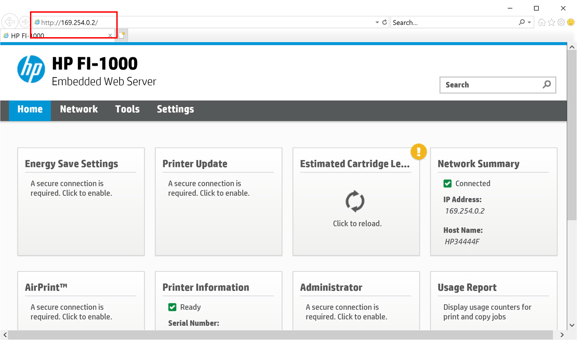
At this point the printer should report a state of Printer Ready.