

Printing from Reliance Vision requires proper setup of both the Vision Software and the Callisto printer. Follow these steps to set up Callisto to print from Vision.
- Set up Vision on the Reliance Vision website.
- Install and Configure the Generic Text Driver
- Add the Required Callisto OpPanel Settings
- Select a Label and Print from the Vision website
Step 1: Setting up the Vision software
Create an account at the Reliance website. It may take a number of days for Reliance to approve and set up your account. https://visionportal.reliancelabel.com. Neuralog Sales Engineers can assist if needed.
Once you log in to the Vision website, an alert will appear requesting that you install the required Vision Print Control software. Download and install. The website will automatically detect this software once it has been installed and will let you know if there are problems with the installation. The help page on the website covers common troubleshooting issues.
Step 2: Installing and configuring the Generic Text Driver
- Navigate to the Devices and Printers settings page in the control panel on your computer.
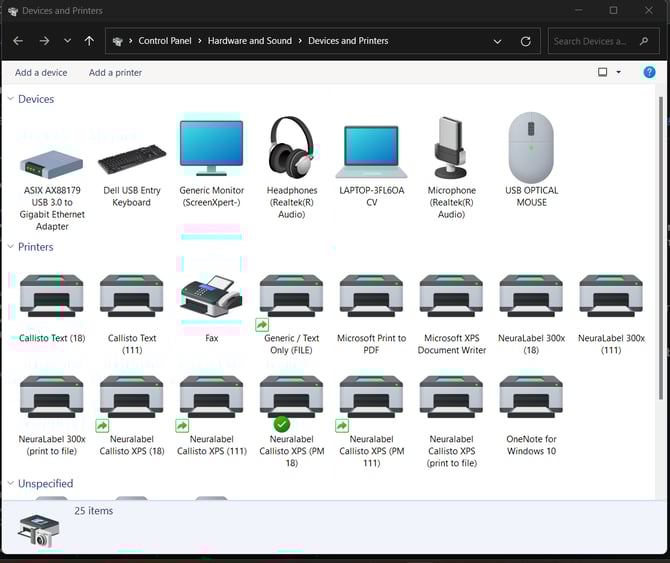
- Select 'Add a printer'
- Select 'The printer I want isn't listed' and then 'add a local printer or network printer with manual settings'
- Select or Add the port corresponding to the printer you want to use. The Standard TCP/IP port type, which uses Neuralog DirectPrint over raw port 1749, is recommended.
- If Adding a TCP/IPPort
- Detecting TCP/IP Port will be diplayed.
- An Additional Port Information Required panel will appear.
- Select the Custom radio button and then the Settings... button
- Enter 1749 as the Raw Settings Port Number
- Click OK when done.
- If Selecting an existing TCP/IP Port
- Make sure the selected port has the Raw Settings Port Number set to 1749
- Do these steps when the printer driver installation is complete.
- Go to the printer in Devices and Printers and right-click to select Printer Properties
- Select the Ports tab and find the selected port.
- Select Configure Port the Raw Settings Port Number is set to 1749
NOTE: Be sure to configure the TCP/IP port to use a Raw Setting Port Number of 1749.
- Select the driver. Under manufacturer 'Generic' select 'Generic / Text Only'.
- After this select 'Replace the current driver'
- The final step is to rename the new printer driver.
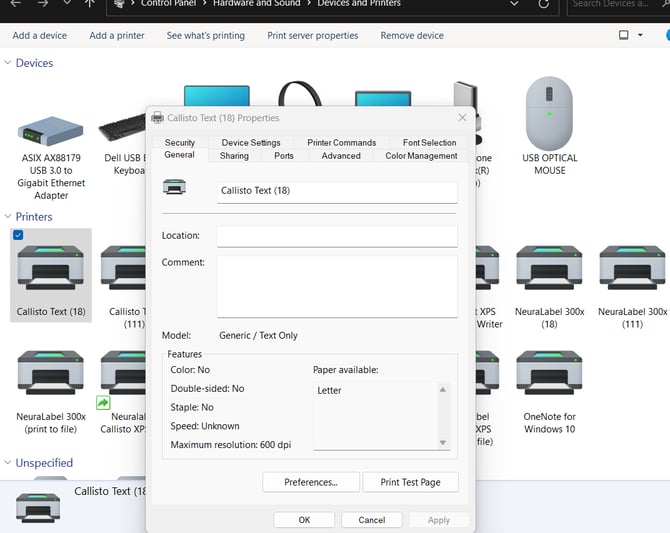
- Right click the printer and select 'Printer Properties'.
- This new name must contain the word 'Callisto'. It is recommended to name it 'Callisto Text ({IP address})' as shown below:
NOTE: Be sure to include Callisto when naming the Generic Text Printer Driver.
Step 3: Required Op Panel Settings
- Set Vision Portal Feature for Sequenced Labels: IF sequenced labels are to be printed: Navigate to Settings->Print Features and select the Callisto Feature "Vision Portal by Reliance Label Solutions". Hit apply. For simple copies do not turn this feature on, even if printing through the Reliance portal.
- TROUBLESHOOTING: If the printed labels are rotated 90 degrees, try switching the status of the Vision feature.
- Set Label Mode and Mark Mode: Navigate to Settings->Print Settings-> Print Parameters. "Labels mode" will already have been automatically selected if the Vision feature is on, otherwise (for simple copies) turn this on. Select "Mark Mode: Black Mark" as well as any Mark/Gap adjust overrides for your label.
REMEMBER: When printing through the Vision Portal, Sequenced Labels require the Vision Feature to be activated. For Copies (UNSequenced Labels) do NOT activate the Vision Feature.
- Set Print Speed: Navigate to Settings->Print Settings-> Print Speed and Ramping. Print Speed override is required (ramping is optional).
- Set Form Size: Navigate to Settings->Print Settings->Media Form Size. Apply the override with a value found by using the following formula:
Form Size = Label Length + Gap Size - 0.5"
If problems occur, go through settings overrides and check that ramping, autojob, and other non-standard settings are off.
Step 4: Selecting the label and printing from the Vision website
- Once the required Vision software is installed and detected, you can use the search bar under the Vision 'Print Labels' tab to find a label to print. For a recommended test label, search 'WOLF' and select the top entry that appears in the search list (WOLF'S HEAD OB & 2-CYC TC-W ( 83622600305) 55 GAL)
- Select the circular arrow ('recall last value') for each item of the list (except for the fourth, Original Batch Qty, which is grayed out and should be left blank)
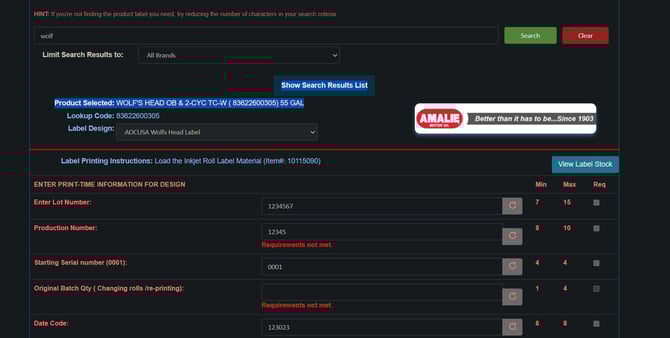
- Scroll down to the remaining 3 boxes. NeuraLabel 300x (NeuraQ) should automatically be selected for Printer Technology.
- For the correct option to appear under 'Select printer' the generic text driver with 'Callisto' in the name (instructions above, step 2). must be correctly installed and configured. After you have done this and selected the correct Callisto Operator Panel overrides (step 3), you can input the desired quantity of labels and select 'Print Now'.
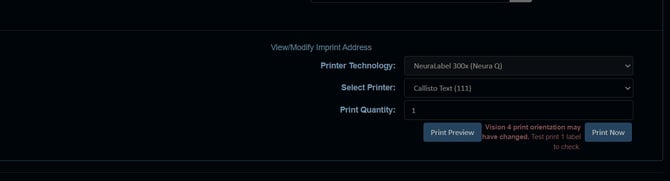
The labels will be printed on the Callisto pirnter.