
NeuraView can be used for simple log correlation.
- Open your log Raster and LAS files.
- Select Raster or LAS ribbon -> Vertical View, or right-click on the document and select Vertical View.
- This places all non-minimized windows in a correlation view.
- There are two settings:
- Log Correlation View Mode: It is often preferred to work with logs horizontally in order to correlate and mark up more easily.
- By default, the view is side to side (vertical).
- Or you can choose top to bottom (horizontal) — by activating Log Correlation View Mode
Log Correlation View Mode: It is often preferred to work with logs horizontally, in order to correlate and mark up more easily.
- Go to File -> Preferences
- In the Preferences dialog, activate “Log Correlation View Mode”.
- Keyboard shortcut: Alt+H (toggle on/off). (This shortcut can be used with or without clicking Vertical View.)
.png)
.jpg)
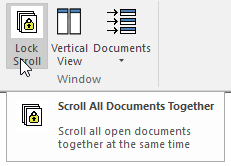
Use the Lock Scroll feature to scroll and zoom all open documents together.
- Select Raster or LAS ribbon -> Lock Scroll
- Scrolls all documents together (at the same rate). To use this feature, you must scroll with the scroll bar — not the scroll wheel.