

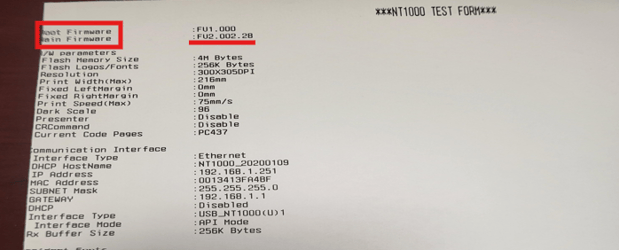
Before you update the NT1000 Truck Printer, it is vital to know which Firmware and Driver are currently in use. To get the firmware information, print a status page from the printer. To do this:
-
Turn the printer off
-
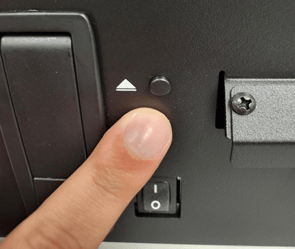
Next, hold the Eject/Advance Media Button, then turn the printer back on
-
Keep the button held until the printer begins printing. You should see a page that looks like the one below
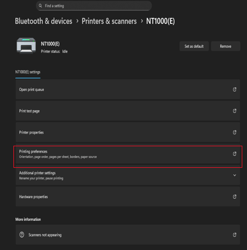
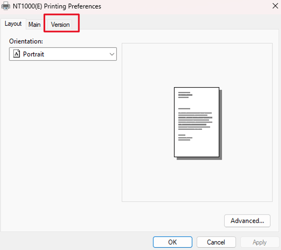
To find the driver information for an installed printer, navigate to the list of printers on your PC, right-click the NT1000, check the Printing Preferences, and navigate to the “Version” tab.
For the newest Firmware version, we will need to ensure we are on Version 1.0.16
If you already have the NT1000 installed on your computer, uninstall the printer using the Uninstall program. Be sure to run the Uninstall.exe as an Administrator to ensure the printer is properly removed. At the end of the uninstall, it will ask you to restart. Do not restart yet.
Next, ensure the Printer Driver is uninstalled. On your Windows search bar, look for “Device Manager”.
With Device Manager open, navigate to the “View” Tab and select the option to “Show hidden devices.”
Once this is done, scroll down to “Universal Serial Bus Controllers.”
You should see entries for “USB Device Driver for Neuralog Printers.” Right-Click them and select “Uninstall Device.”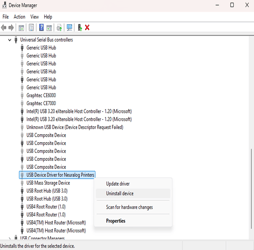
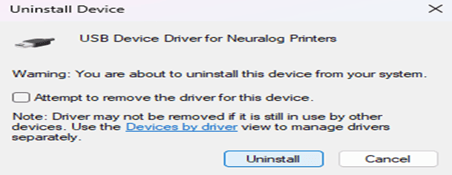
When this is complete, restart your PC.
Next, download the software and update packages from the Neuralog website, located at: https://www.neuralog.com/neuralog-nt1000-support/
Two things are required:
- The most recent Update Package (at the time of writing is zip)
- The MCT program (MCT Download)
Install the MCT program and unzip the Update Package.
Use the MCT program to update the printer's firmware. Once installed, connect the printer to your computer via a USB cable. Ensure you are not using an adapter, as this can cause issues with how the printer and computer communicate.
Open the MCT program.
In the Bottom Left corner, select the box that reads “NONE.”
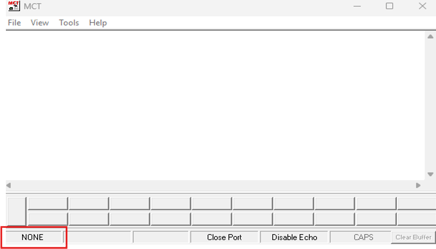
This will open a drop-down menu; select “USB.”
Be sure the box is directly next to the one reading USB has “814M_API” selected. If it doesn’t, click it and select it.
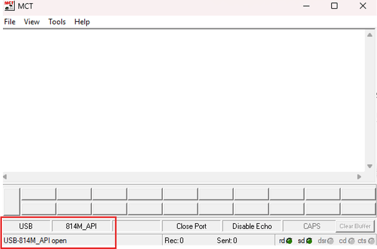
Using MCT, we can check the Firmware version using the commands included in the Update Package. In the MCT, select “File,” “Send File,” then navigate to the Update Package folder, then the “MCT_COMMANDS” folder.
Once there, you can select “get_FW_version.bin” and hit Open.
This does two things:
-
First, it shows us the Firmware Version currently on the printer; it should match the Test Page we printed before.
-
Second, it verifies that the Printer is communicating properly with the computer.
When you open the get_FW_version file, the MCT should return a line of text that looks similar to this:
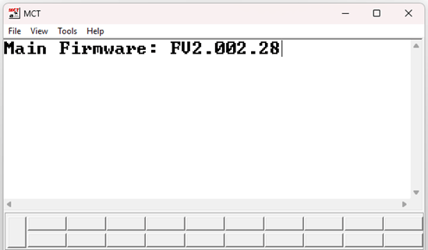
Now that we have verified the Firmware Version, we can begin the update.
Go back into the File tab, and select Send File.
Navigate to the Update Package folder and select the folder titled “NT1000FW_V2.37”.
From here, send the .ttl file, in this case “814M_LOG_v200237_20251202.ttl” The update should then begin.
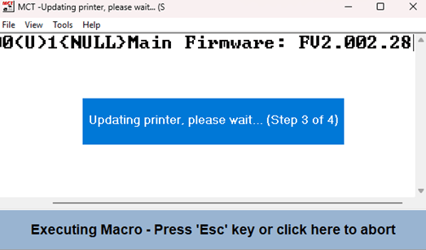
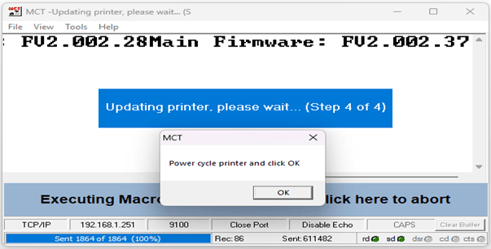
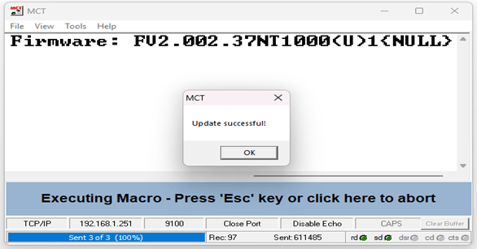
Now that the Printer Firmware has been updated, you should be able to reinstall the printer successfully.
Run the Setup.exe file as Administrator and proceed as indicated in the manual.