

-
Access Printer Settings:
- Open Devices and Printers in the Windows Control Panel.
- Locate and right-click the Callisto printer, then select Printer Preferences.
-
Configure Printer Parameters:
- Set Banner and Black Mark options in the printer driver settings.
- Avoid using Printer Overrides, as Warrior does not support these settings directly.
- Warrior Setup
- Go to Warrior Control Panel and select the Plot tab. Click the Printer setup button.
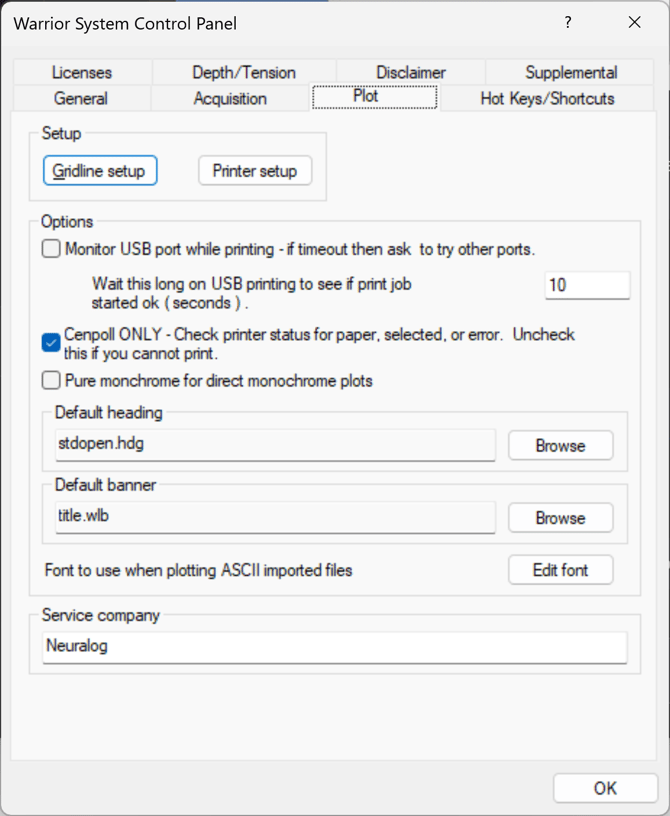
- Check “Enable printing through Windows printer.”
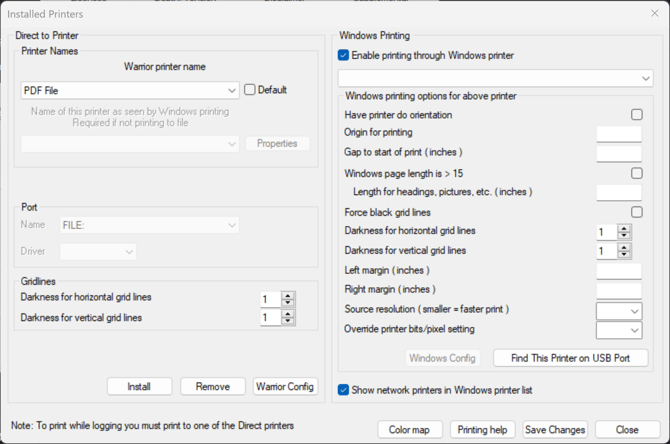
- Close the Warrior Control Panel.
- Go to Warrior Control Panel and select the Plot tab. Click the Printer setup button.
- Test and Adjust:
- To print the logs, start the Warrior Interactive Plot and load the log by browsing for the log.db database file. You will see the log load.
- Click the print icon, select the Callisto/NT1000 printer you set up, and click the Print button.
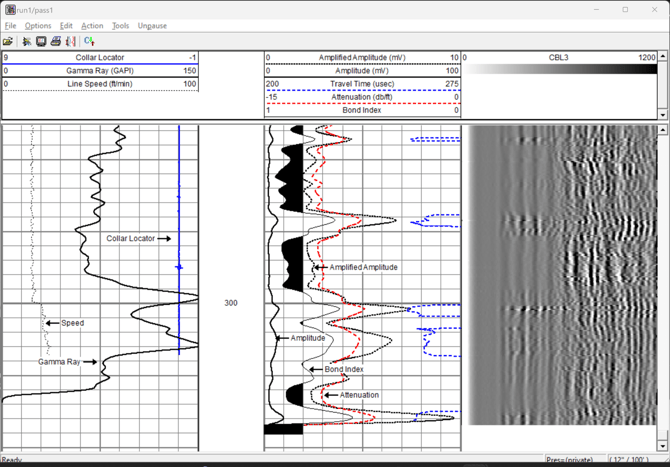
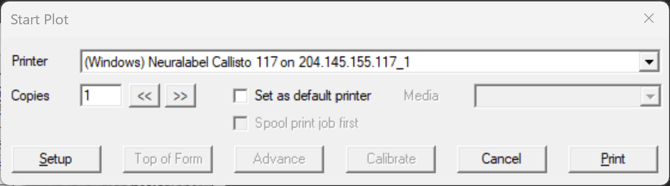
- Print a test log from Warrior to confirm the settings produce a clean, properly aligned log.
- If adjustments are needed, revisit the custom form settings.
Control Print Width: If the log prints too wide (default is 8.5", which may bleed off the paper), adjust the Form Size:
- Create a custom form size of 8.25 x 7.893 inches:
- 8.25 inches ensures the log width fits within the paper.
- 7.893 inches optimizes tail length for a cleaner print.