
Callisto Job Reports
Auto Send Job Reports from OpPanel
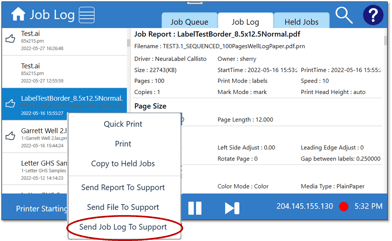
- Go to Job Log, select any file in the list, and choose Send Job Log To Support.
Manual Send Job Reports from Web Server
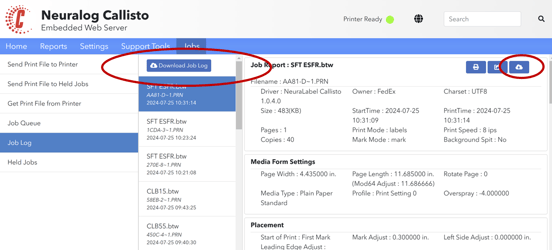
- Go to Job Log on Web Server, choose Download Job. This will go to Downloads folder on client PC. Have user email the created zip file to support.
This technique is needed for Callistos not on the company network and internet.
Callisto Logs
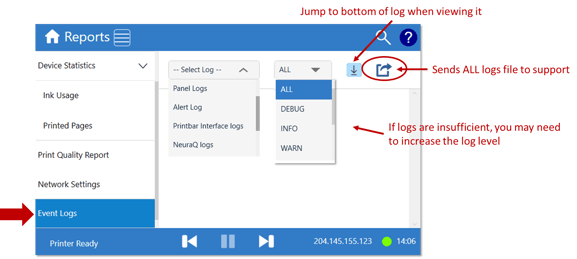
Auto Send All logs from OpPanel
- Go to Reports
Manual Send Logs from Web Server
- Go to Reports on Web Server; choose DOWNLOAD ALL button. Logs will go to Downloads folder on client PC. Have user email the created zip file to support.
- This technique is needed for Callistos not on the company network and internet.
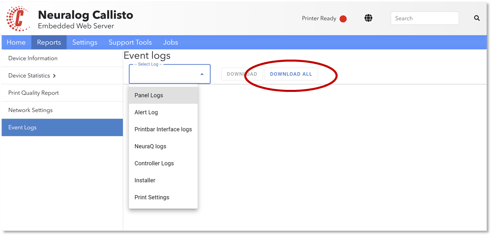
Viewing Callisto Logs
- Callisto Logs can be viewed on the OpPanel or WebServer.
- Callisto Logs are text files and can be viewed in any text editor.
- Use notepad++ or notepad.
Callisto PRNs
Auto Send PRNs from OpPanel
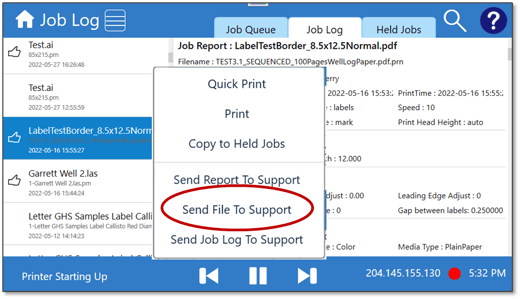
- Go to Job Log, select recent “thumbs up” file in the list and choose Send File To Support.
-
PRN is uploaded to Neuralog www site and a link is sent to support
Manual Send PRNs from Web Server
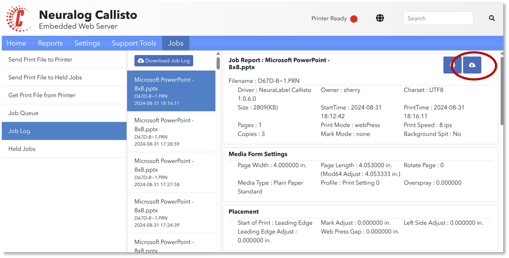
- Go to Jobs on Web Server; select the recently printed file and click the download button. The PRN with its job report will be zipped and downloaded to the customer’s Downloads folder on client PC. Have user email the created report.zip file to support.
- This technique is needed for Callistos not on the company network and internet.
Printing Callisto PRNs – Send to Printer
PRNs are easily sent to the printer from Web Server
- The PRN will probably be zipped. First make sure to unzip it.
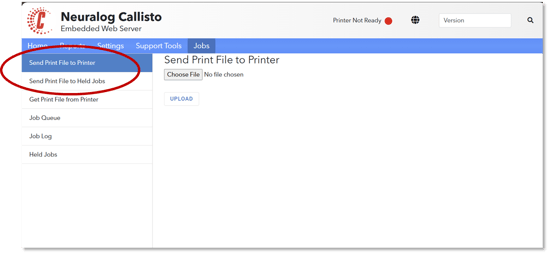
- Go to Jobs on Web Server; select Send Print File to Printer and browse for the PRN. This will immediately print the file.
- Go to Jobs on Web Server; select Send Print File to Held Jobs and browse for the PRN. This will immediately print the file.
- The file can also be printed by logging into the printer and dropping the PRN in the folder D:/Sprint.