

Ink Smear Symptom and Cause
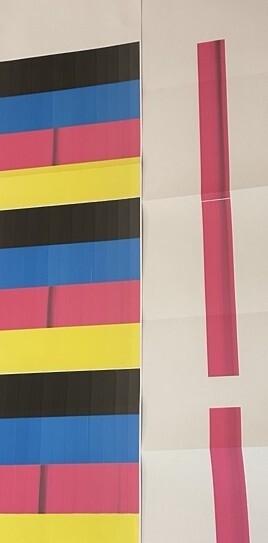
An ink smear can occur on a print if one color of ink mixes with another at the die level. This smear or smudge can happen if a printer is left unused for an extended period of time. The ink smear is seen as a smudge or streak in one more more dies, similar to the picture below.
In the example picture, the black ink has bled into the magenta die space. The left part of the picture shows the CYMK report with black ink bled into the magenta band on on of the center printer dies. The right part of the picture shows a narrow magenta report being printed until the black ink has faded and the problem has been eliminated.
Removing an Ink Smear
An ink smear from ink mixing is removed by running ink through the line. There are two options for clearing an ink smear. The option you choose will depend on whether or not you are able to run additional media through the printer.
Print Head Cleaning Routines
Use this method if you do not want to use additional media to clear the issue.
On the printer operator panel, visit Support Tools->Maintenance->Clean Printhead
-
Click on the Custom Cleaning radio button
-
From the Select Die bar, select the dies where the problem is occuring. It is okay to select extra dies if you are uncertain which one to choose.
-
From the color selection menu, select the color where the ink is bled. Do NOT select the color of the smear.
In the picture shown, the black ink has seeped into the magenta space. Select Magenta for the color. -
For printhad cleaning related to ink smears, select Max drops.
-
Select 1-10 iterations. You will repeat the process as needed.
-
Click the Start button to begin the cleaning process.
After the cleaning routine completes, print a sample page to verify the problem has been resolved. If needed repeat the process.
Report Printing Routines
Use this method if you are able to use additional media to clear the ink smearing issue. This method may produce results more quickly than printhead cleaning.
On the printer operator panel, visit Support Tools->Maintenance->Clean Printhead
Color Report Selection
Select the color report you want to use. The default is CYMK.
For the picture in the example we would choose Magnta Sheet.
Report Settings
Click the Report Settings Button and select parameters for your cleaning needs.
-
Width of Media to match the width of your media
-
Length of Media to match the length of die-cut media. For non die-cut media the length is flexible.
-
Intesity range is 50..150. Use 150 for maximum ink flow.
-
Copies: Use a small number until you are familiar with this feature.
-
Print mode: Mark, None or Gap
-
Enter OK when selections are made. The report settings can be changed as needed.
Select the Print button to print the custom report to remove the ink smear issue.
As the report pages are printed, you will see the ink smear fade. If needed repeat the process until the problem has been resolved.