

If a job is sent to the Callisto printer, but the printer never receives the job, first verify that the job is in the print queue by selecting "See what's printing" for the printer. If the job is stuck in the print queue, and not being delivered to the printer, any of the following problems may be occurring.
Printer does not have a unique network IP address
If the printer has a network IP address that is not unique, the print job will not be delivered to the printer. This can happen if the Callisto printer is set to use a static IP address, but the address has not been marked as static on the network. In this case if the printer is powered OFF, that address will likely be assigned to another device. When the printer is turned back ON, it will remain set to address that is already in use and will not receive jobs.
DIAGNOSIS: To verify that the printer's IP is in use by another device,
- Unplug the network cable in the back of the printer or turn the printer OFF
- Ping the network address or view the web server of that network address
- IF THERE IS NO RESPONSE, this is likely not the issue. Go to the next section.
- IF THERE IS A RESPONSE FROM PING OR THERE IS AN ACTIVE WEB PAGE, then there is an address conflict. Obtain a new IP address for the Callisto printer.
- To enter a new IP ADRESS select the Setting icon on the printer Operator Panel and then select Device Settings
- Go to IPV4 Settings and enter a validated STATIC network address or change the printer to use an AUTOMATIC network address
Printer driver does not have the correct network IP address or network PORT set up correctly
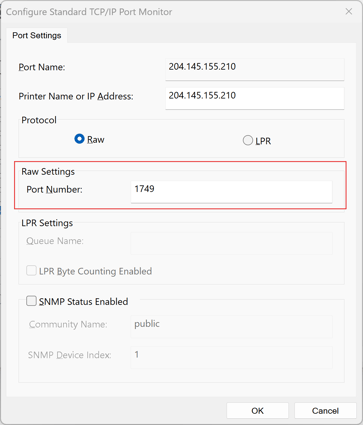
The Callisto printer is normally configured to use a IPv4 and network address and Port 1749. This network address and port are set up in the PRINTER DRIVER INSTALLATION. If the Callisto printer responds to the Ping command, and its website is reachable, but the printer does not receive a print job, it is likely the port has not been set up in the printer driver.
Also since the printer network address and port must be set up in the driver for each driver installation, it might be that some users (PCs) are able to print, while others are not. Each driver installation should be checked.
NOTE: Be sure the check the driver installation for each user/computer that is unable to print.
DIAGNOSIS: Inspect the printer driver installation, verify the network address, and verify that the port is set to 1749.
- Go to Devices and Printers in the Control Panel of the computer where the driver is installed.
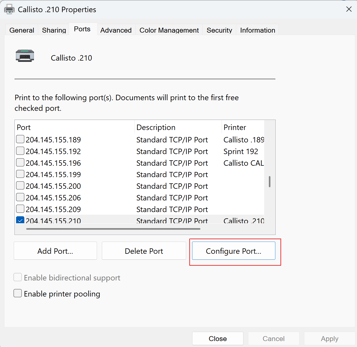
- Select the Ports tab. The TCP/IP ports listed are actually network addresses.
- Verify that the correct network address is selected.
- Select the Configure Port... button for the selected TCP/IP port network address.
- In the panel that appears, verify that the port number is 1749.
NOTE: Most printers use port 9100 by default; Callisto uses 1749.
SOLUTION:
- Make sure the correct IP Address is selected for the printer.
- If the port is not 1749, set it and click the Apply button
- Close the panel and try to print again.
- If printing is still unsuccessful, proceed to the next section.
Printer is not on the same network as the computer sending the job
The Callisto printer is normally configured for dynamic IP addresses and usually obtains an address with no issues. If you are switching between a private (only your computer) and local (your company's network) network, you may need to check the Callisto's network configuration to make sure it properly matches the desired network. If printing with a PC directly attached to the printer, you may also need to check the network setting on the PC.
SOLUTION:
Check the Callisto Network settings
- Select the Setting icon on the OpPanel and then select Device Settings
- Go to IPV4 Settings and check the network address
Check the Computer Network settings
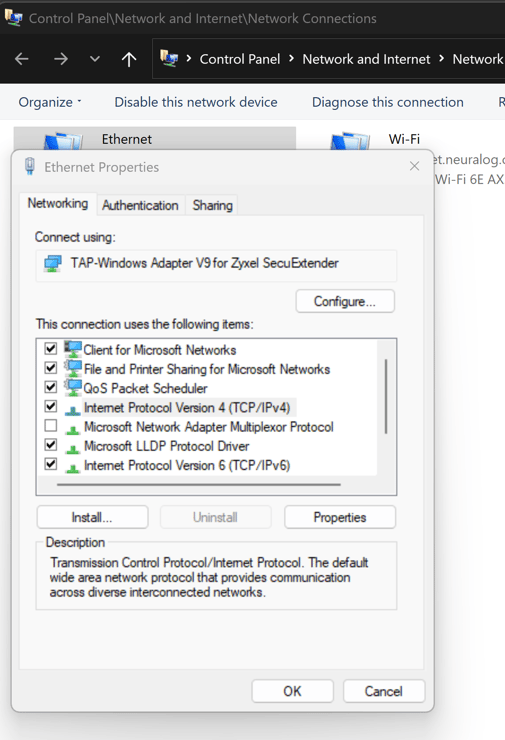
Select Network on the PC and go to the network settings page.
- Select the wired network you are using.
- Select Internet Protocol Version 4 (TCP/IPv4) .
- Click the Properties button.
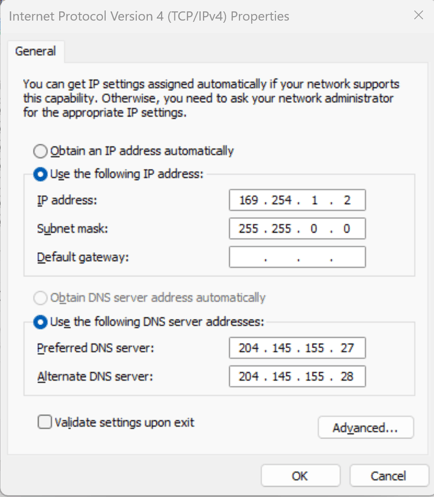
- Enter an address to match the printer network. Normally, the first three numbers match; the last number must be different to establish a unique address.
- Click OK.
- Test the network connection by pinging the printer or bringing up its Website.
THE PANEL SHOWN IS AN EXAMPLE ONLY. YOU WILL HAVE DIFFERENT NETWORK NUMBERS.
Network Router or Cables are Bad
It is possible, and not that uncommon, for a network router to fail. It is also possible that a network cable has a bad connector and does not properly seat to make proper connectivity.
- Check both ends of the network cable to make sure the connection is secure.
- Check the router to make sure the flashing network indicator light is blinking.
- If possible, try a different cable or router.